Accessing Gen 5 Controls
Field controls can be accessed in two different ways within Forms Designer. They are then dragged-and-dropped onto the design canvas.
- From the Administrator Tools tab from the SmartSolve Portal Page, click Designer > Forms Designer.
- From the top menu, select Form > Open to open an existing form or select Form > New to open a new form.
- Use one of the two options below to view the controls:
Option 1 - Drag a field from the Data Model section on the left side of the Forms Designer onto the forms designer canvas. A selection of controls displays when the field is dropped. Select the control for the data field.
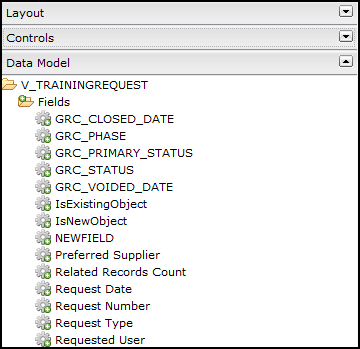
See Data Models - Entities for more information on Data Models.
Option 2 - Expand the Controls section on the left side of the Forms Designer.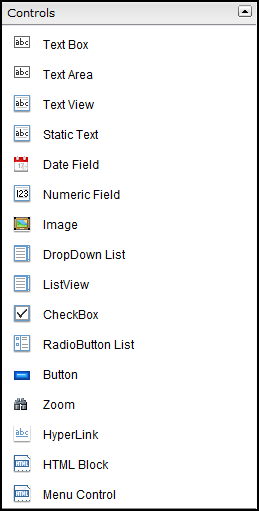
- The following controls are available:
| Control | Description |
|---|---|
|
Text Box |
Allows the end user to enter any alpha and/or numeric character into the field. |
|
Text Area |
Allows the end user to enter free text into a multi line text area such as a Comment, Sign-off, or Description. |
|
Text View |
Allows the designer to set the text in a view only format on the form. For example, the forms designer could use the Text View control to add the form number. |
| Static Text | Allows Designer to add read only static text in a row on the form. |
|
Date Field |
Allows the end user to enter dates in the fields using existing date field formatting in SmartSolve. |
|
Numeric Field |
Allows the end user to enter a numeric field, such as Lot Quantity. |
|
Image |
Allows the end user to insert an image on the form using a URL. |
|
Drop Down List |
Allows the end user to select predefined data from a drop-down field on the form. |
|
List View |
Allows the end user to select a multiple list of values. |
|
CheckBox |
Allows the end user to check a check box to select an option on the form. |
|
Radio Button List |
Allows the user to see a list of values and then select a radio button to select the value. |
|
Button |
Allows the designer to add buttons such as Save, Cancel, Link, etc. |
|
Zoom |
Allows the end user to zoom to an entity or external data source from the field. |
|
Translation |
Allows the end user to add a translation to a field. |
| Hyperlink | Allows the end user to launch to external websites, network locations, or internal pages from within SmartSolve. For example, it allows the user to access SmartDoc™ controlled docs or an advanced search listing of records and/or reports. |
|
HTML Block |
Allows the designer to change font and graphics of the text displayed. Adds the call out function for the button when clicked by the end user. |
|
Menu Control |
Allows the designer to display menu options for the user, such as Other Tasks, Other Actions, Print, and Go To Details. For information about adding the Add Attachment button to the Detail menu, see Configuring the Add Attachment button. |